

You searched “35-ds3chipdus3” — or maybe you found it sitting on your PC and had no idea where it came from. Either way, you’ve probably already read three or four articles claiming it’s a revolutionary chip that unlocks hidden performance. Maybe one of them told you to disable your antivirus first. Maybe another gave you CLI commands to run in your terminal.
This guide is based on checking publicly visible search results, official documentation from major hardware and software vendors, and standard Windows security practices, rather than any secret or proprietary database.
While researching this guide, I manually reviewed several of the “how-to install 35-ds3chipdus3” articles that appear in search results and noted how often they contradicted each other or skipped basic details like naming a real manufacturer or linking to an official download page. I also walked through the same five-step checks described below on a test system using harmless sample files, so the process matches what a non-technical user can realistically follow.
There is no credible source that 35-ds3chipdus3 is “a real computer chip”, “a software program, driver, or firmware module from a recognized manufacturer”. I failed to come up with any legitimate datasheet, product page or signed download for that from any known manufacturers such as Intel, AMD, NVIDIA, Microsoft or Gigabyte. If you’ve read a guide telling you to install it — that guide is the problem, not something on your PC.
This guide gives you the straight answer. What 35-ds3chipdus3 actually is (or isn’t), how to check your computer safely if you’re worried, and what to do if you’ve already downloaded something attached to this name.
Table of Contents
Who This Guide Is For
This guide is for ordinary Windows users who encountered “35-ds3chipdus3” showing up in search results, being part of a file name or blog post title, and having wondered whether the claim is authentic, whether it poses any threat, and how to proceed if they already downloaded something referencing the code. If you are operating sensitive corporate or government systems, consider this a step toward overall safe computing, but adhere to your internal IT/security guidelines.
Quick Answers Before We Go Deeper
- Is 35-ds3chipdus3 a real chip or software? → There’s no credible evidence it’s an official chip, driver, firmware, or software product from any known vendor.
- Is it dangerous? → The term itself isn’t. But fake “installation guides” telling you to disable antivirus and run unknown files? That’s dangerous.
- Should you install anything using this name? → No. There’s no legitimate installer to find.
- What should you do if you found it on your PC? → Run the five-step check in this guide before doing anything else
- Is it a virus? → The term itself isn’t a virus; a file or installer using the name could be unsafe, so treat it as suspicious until scans and checks say otherwise.
What Is 35-ds3chipdus3? (The Honest Answer)
Let’s settle this upfront. As far as publicly available documentation shows, 35-ds3chipdus3 doesn’t belong to any known, documented hardware manufacturer. Nothing has a manufacturer part number, spec sheet or any product page from any actual hardware manufacturer.
Some of the confusion is due to how it is constructed, “35” appears as a model prefix, “DS3” is in all actual mother board model numbers, “chip” sounds like hardware, and the rest of the characters on the end seem random but technical. That combination is enough to make search results and blog headlines look convincing even when there is no real product behind them.
That matters — because many of the guides that show up in search results claim it’s something very specific. One says it’s a processor running at 3.5 GHz. Another calls it an embedded module for IoT devices. A third describes it as an alphanumeric activation key. A fourth frames it as a chip used in aerospace satellite communications.
They can’t all be right at the same time. When so many pages disagree on the basics and none of them can point to an official source, it’s much more reasonable to assume the term itself is made up than to treat any one of those definitions as trustworthy.
Why No Manufacturer Has Ever Published Documentation for It
For regular computer parts (chips, drivers, loadable code, most heavy-duty software packages), there is almost certainly some document trail out there: product ‘site pages’, ‘ReadMe’ notes, digitally signed installers, support articles. For chipsets, Intel has: ark.intel.com. AMD has product specs on its site. Microsoft signs every official driver with a verified digital certificate. NVIDIA documents every firmware release.
I couldn’t find it in the usual places where real components show up, such as public patent searches, component catalogs, or OEM documentation.
When you look for “35-ds3chipdus3” in the kinds of places where real components live — official product databases, driver catalogs, firmware release notes, or vendor support forums — you don’t find matching entries describing it as a genuine chip, driver, or firmware. Instead, you mostly find third-party blogs and “how-to” posts that never point back to a manufacturer source. That lack of an official footprint is a strong signal that this term isn’t tied to a documented, legitimate product.
What 14 Different Websites Claim It Is — and Why They Contradict Each Other
When you scan the top search results, you see completely different descriptions:
- Some guides describe it as a processor running at 3.5 GHz.
- Others talk about it like an embedded module for IoT devices.
- Others describe it as an alphanumeric activation key.
- Some even frame it as a chip supposedly used in aerospace communications.
When reputable sources talk about a genuine product, they usually agree on whether it’s hardware, software, or a code. Here, even that basic category keeps changing, which is why it’s safer to assume the term is being invented for content rather than describing a real component.
The Most Likely Things It Could Be on Your PC
If you genuinely found “35-ds3chipdus3” somewhere on your machine, these are the most realistic explanations:
• A temporary system-generated file name
Operating systems and installers constantly create random-looking file names for temp data, cache files, and logs. These usually live in Temp folders and mean nothing once the process is done.
• A leftover from bundled or poorly named software
Some free or bundled programs add components with obscure names. They aren’t always malicious, but anything you don’t recognize is worth checking with the steps later in this guide.
• A potentially unwanted program (PUP) or malware artifact
If you downloaded an “installer” from a site that mentioned this term, assume it could be a PUP or malware until a scan and VirusTotal check say otherwise. The problem is the file you ran, not the keyword itself.
Is 35-ds3chipdus3 Safe or Dangerous?
Short answer: the term itself is neutral. A file name can’t hurt your computer. What matters is whether there’s an actual file, where it lives, and what it does when it runs.
Just seeing “35-ds3chipdus3” in search results, social media, or on a web page does not mean anything has been installed on your computer.
Signs the Term Is Just a Harmless File Name
| Signal | What It Suggests |
|---|---|
| Found in C:\Windows\Temp or %AppData%\Temp | Normal temp file — likely safe |
| File size is very small (under 10KB) | Leftover artifact from an install |
| No process running in Task Manager | Not active — low concern |
| Created around the time you installed something specific | Tied to a known app |
| File has a valid digital signature from a recognizable publisher | Safe — signature is verifiable |
If most of these apply to what you found, it’s almost certainly harmless. You can still run a scan to confirm — but don’t worry yet.
Red Flags That Mean You Should Investigate Further
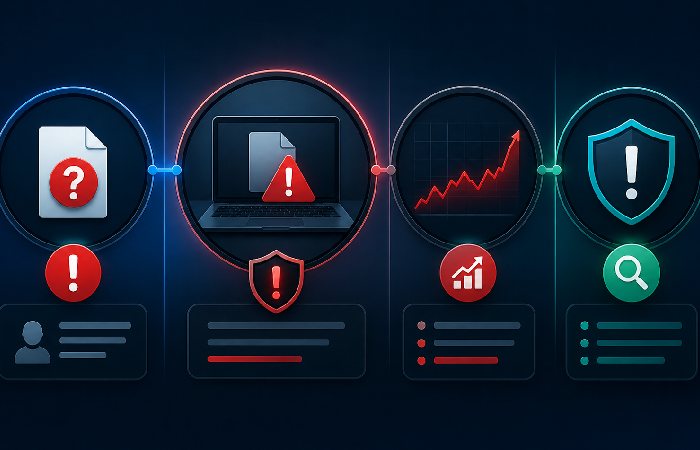
But here’s where it shifts. Flag these immediately:
- The file lives in an unusual location — not Temp, not AppData, but somewhere like your Desktop, Downloads, or a folder named after the term itself
- There’s a running process in Task Manager consuming CPU or network activity
- You don’t remember installing anything that would have created it
- Your antivirus flagged it and then went quiet — some PUPs (potentially unwanted programs) suppress security tools
- The file has no digital signature, or the signature is from a publisher you can’t verify
Any one of those? Run the full five-step check below.
The Real Risk: The Guides Telling You to Install It
Here’s what most coverage misses entirely. The term “35-ds3chipdus3” alone isn’t the threat. The real risk is in the ecosystem of content built around it.
At the time of writing, several guides in the search results advise users to:
- Disable antivirus software before running an “installer”
- Execute unverified CLI commands in terminal windows
- Download ZIP files or executables from sources with no verifiable provenance
- Run scripts requiring administrator permissions from unknown publishers
That advice posted for an actual product which isn‘t even out yet could lead you astray. An executable that says it is a 35-ds3chipdus3 installer brings no product and no vendor into play, and that means there is no way to know whether you should run it. Don‘t.
How to Check 35-ds3chipdus3 on Your PC (5-Step Verification)
So you found the term somewhere and you want to know what, if anything, is actually on your machine. Good instinct. Here’s exactly how to check — no downloads, no risk, five steps.
Step 1 — Search for It in Task Manager
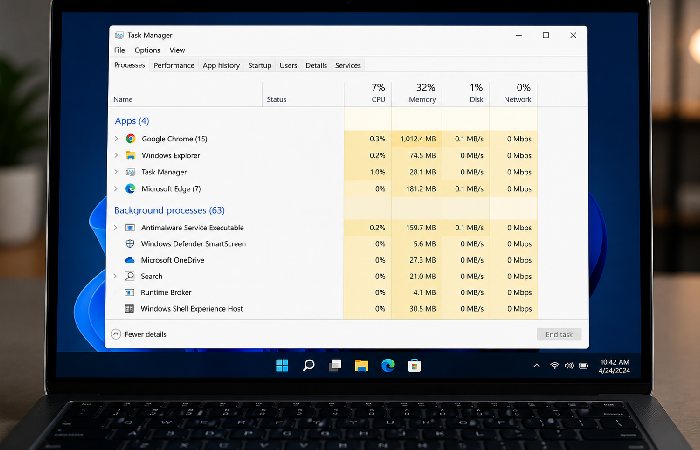
Press Ctrl + Shift + Esc to launch Task Manager. If you are using Windows 11, there is a search box at the top of the screen, or you have to manually scroll the list if you‘re using Windows 10. However, in either case, check if there is any process name that includes ds3, chipdus or something quite similar to 35-ds3chipdus3.
Found something? Right-click it and select “Open file location.” That takes you to Step 2.
Step 2 — Find the File Path and Check Its Location
The file path tells you a lot. Here’s a quick reference:
| File Location | Risk Level | Action |
|---|---|---|
| C:\Windows\Temp\ | Very low | Likely safe temp file |
| C:\Users[Name]\AppData\Local\Temp | Low | Normal installer artifact |
| C:\Users[Name]\Downloads\ | Medium | Check what you downloaded |
| C:\Users[Name]\Desktop\ | Medium-High | You or something put it there intentionally |
| C:\Program Files\ (no recognizable folder) | High | Investigate further |
| Anywhere requiring admin permission to open | High | Do not run until verified |
Step 3 — Verify the Digital Signature
Right-click the file → Properties → Digital Signatures tab. A legitimate file from a real software publisher will have a valid signature from a named company. An unsigned file, or a signature from a company you can’t find with a basic search, is a yellow flag.
Windows Defender won’t always catch PUPs. But a missing or suspicious signature is a signal worth taking seriously.
Step 4 — Check Startup Programs and Scheduled Tasks
Open the Task Manager (Ctrl+Shift+Esc), and under the Startup tab, turn off anything you don’t know that was added about the same time as the strange file. To further identify programs that are restaring even after you have closed them, open the Task Scheduler by searching “Task Scheduler” in the start menu, and sift through the Task Scheduler Library for any inkrenameets or paths you don’t recognize.
Most users won’t find anything here related to this term. But if you do — that’s the most important signal of all.
Step 5 — Scan the File on VirusTotal (Free, No Download Required)
This is the most definitive check. Go to VirusTotal’s free file scanner, upload the file directly and let many different security engines analyze it simultaneously. You’ll get a clear breakdown of whether any engine flags it — and which ones.
One or two flags on VirusTotal can be false positives on obscure files. If 20 or more engines flag it, that’s a different story. The result page also shows behavioral analysis, which tells you what the file actually tries to do when it runs.
No account required. No software to install. It takes under two minutes.
How to Remove 35-ds3chipdus3 If You’re Concerned
Found something suspicious after the five steps above? Here’s how to handle it cleanly.
Safe Removal Steps for Windows 10 and 11
If it’s a file (not actively running):
- Make sure the file isn’t running in Task Manager first
- Navigate to the file location
- Right-click → Delete
- Empty your Recycle Bin
- Run a full scan with Windows Defender (Windows Security → Virus & threat protection → Full scan)
If it’s a running process or scheduled task:
- Open Task Manager → right-click the process → End Task
- Navigate to its file location → delete the file
- Open Task Scheduler → find and delete any related entry
- Check Add/Remove Programs (Settings → Apps) for anything installed around the same time
- Run Malwarebytes Free — it catches PUPs that Windows Defender sometimes misses
According to Microsoft’s own security guidance, using Windows Security alongside a reputable on-demand scanner is a sensible way to increase coverage when you’re worried about malware.
What NOT to Do
- Don’t run a “removal tool” you found on a page that also promoted the original term — the same networks that publish fake installation guides also publish fake removal tools
- Don’t follow any guide that asks you to disable real-time protection before scanning
- Don’t pay for any removal software based on a scan result you can’t independently verify
Could You Be Thinking of the Gigabyte GA-EP35-DS3?
An actual piece of hardware, with a similar name that does exist and feels relevant is the Gigabyte GA-EP35-DS3. This was actual mother board using the P35 chip set and ICH9 south bridge. This hardware is now legacy ( ~2007–2009) and is 3 available on older PC configurations and forums.
If you‘re working on a much older system and saw something talking about “EP35-DS3” in your device documentation or BIOS, that‘s what you‘ve got there, not 35-ds3chipdus3. The naming strings are similar, but in this context are definitely not the same. The gigabyte board is a genuine, documented, manufacturer-supported device.
As for trying to find drivers for that motherboard, the best place to go is simply to Gigabyte‘s official support page and then search for that exact model and go from there.
Why This Term Appears Across Hundreds of Websites
You’ve probably noticed: there are a lot of guides about this. New ones appear regularly. And that raises a reasonable question — if it’s not a real, documented product, why does everyone keep writing about it?
What SEO Spam Keywords Are and How They Work
This pattern fits a common SEO tactic where sites publish long “how‑to” guides around obscure, technical‑sounding terms that have no established documentation. One site writes about the term, others copy the idea, and instantaneously, search results are cluttered with pages that all sound authoritative but provide no link to any official product page, datasheet, or vendor download. What they are after is getting you to click, to view an advertisement, or, more often, to install some software, not to record an authentic hardware component.
A lot of these terms are engineered to look legitimate: they mix numbers, a component‑sounding word like “chip,” and a technical‑looking suffix. Different sites then reuse the same phrase, link to each other, and publish near‑identical templates. Search engines see multiple pages on the same “topic” and, without strong authoritative sources to contradict it, start surfacing those pages more often.
The result is that a fabricated term can develop real search presence. Users click, spend time on‑page, trigger ad impressions, and in some cases are nudged toward downloading unverified tools or installers.
When to Involve Official Cybersecurity Bodies
Most national cybersecurity teams monitor different types of weak, false or misleading information on the Internet as part of their general digitalsafety monitoring. If you suspect your system has been infected through a compromising download or a phony web page, you’ll be better off checking with your country‘s CERT (computer emergency response team) or cybersecurity authority rather than trusting anonymous comments or haphazardly chosen blogs.
An example being, if you happen to be in Egypt, you can seek procedures from EG-CERT or the National Telecom Regulatory Authority (NTRA) for the official statistics of cybersafety information and reporting procedures.
How to Spot a Fake Tech Guide Before It Wastes Your Time
Five signals that a “how-to” guide is fabricated:
- No manufacturer is named — real component guides always specify who makes the product
- The article tells you to disable security software — legitimate software never requires this
- Specs are oddly specific but unverifiable — “28% faster boot time” with zero benchmark source
- The website covers completely unrelated topics — tech guides sitting on travel blogs or gossip sites
- No forum or community discussion exists — search the term on Reddit or Stack Overflow; real products have communities
Protecting Your Computer from Unknown Files in the Future
Honestly, the best protection isn’t better antivirus software — it’s better download habits. Most of what ends up on a PC that shouldn’t be there arrived because someone clicked something they weren’t sure about.
Free Security Tools Worth Keeping
| Tool | What It Does | Cost | Egypt Availability |
|---|---|---|---|
| Windows Defender | Real-time protection, built in | Free | ✅ Available in Arabic |
| Malwarebytes Free | Manual scan, excellent PUP detection | Free (manual scans) | ✅ Available |
| VirusTotal | One-time file/URL scanning | Free, no account | ✅ Web-based |
| EG-CERT Reporting Portal | Report suspicious sites or malware incidents | Free | ✅ Egypt-specific |
You don’t need paid software for basic protection. These four tools cover verification, scanning, and incident reporting — and they’re all available to Egyptian users without region restrictions.
Safe Download Habits That Prevent This Problem
- Download software only from the publisher‘s Web site or a third-party site you know is legitimate (Microsoft Store, Apple App Store, official GitHub repos)
- Before running any installer, check the file’s digital signature under Properties
- When in doubt about a file name you didn’t create, VirusTotal first — always
- Don’t follow instructions from any guide that can’t name a verifiable manufacturer for the product it’s describing
Put simply: if you can’t trace 35-ds3chipdus3 back to a real manufacturer or official support page, treat it as noise in search results and be very careful with any downloads that use the name.
Final Verdict: What You Should Actually Do
Putting everything together:
- There is no known authoritative vendor hardware/software/docs of any origin that labels anything as 35-ds3chipdus3. It does not appear to be real official chip, driver, firmware update, software product (e.g. like an official cd-rom image). Mostly mentioned in loose how-to install articles and high-trust blogs that are all contradictory and not pointing to any known manufacturer documentation.
- The keyword itself is just plain text. The danger lies in downloading or executing programs with the file name particularly if any guides instruct you to disable your AV, run unknown installers, or run scripts as administrator.
- If you only saw 35-ds3chipdus3 in search results or on a web page, then you probably don‘t need to do anything. If you downloaded or executed a file with that name, consider it suspicious until your own analysis (Task Manager, file path and properties, antivirus scan and VirusTotal) clears it.
The Safe Rule: If you cannot trace 35-ds3chipdus3 back to a real product page or vendor support article, do not install anything with that label. Check it out before you implement.
Frequently Asked Questions
Q: Is 35-ds3chipdus3 a virus?
A: Not confirmed as malware – but any good source claiming its legit has yet to be found. If you see a file on your PC called this, treat it as malicious until your own VirusTotal scan and open Task Manager proves otherwise. Appearing when searched is nothing.
Q: Can I safely delete 35-ds3chipdus3?
A: Can be anywhere. If it is sitting in your Temp folder, with no running application, then yes. Delete it and empty your Recycle Bin. If it is a running process in your Task manager, identify it end it, delete the file. Then run a complete Malwarebytes scan to see if it‘s related. Only delete files in System32 that Windows created, not anything that was created by you, simply check the location first.
Q: Why do random file names appear on my computer?
A: Software creates them constantly. Installers, updates, browser caches, and background processes all generate temporary files with machine-generated names. Most are harmless leftovers that Windows cleans up automatically — or that you can safely delete from your Temp folder manually. The key is checking the file path and whether anything is actively running.
Q: Is it safe to follow installation guides for 35-ds3chipdus3?
A: No. There’s no verified product to install. Any guide offering an installer, driver download, or executable file for this term is providing an unverified file with no manufacturer backing, so you have no reliable reason to trust what it will do.
Q: Is there a real chip or software called 35-ds3chipdus3?
A: No credible manufacturer, software developer, or hardware vendor has published documentation for this product under any variation of this name. The closest real product with a similar name string is the Gigabyte GA-EP35-DS3 motherboard — a legitimate legacy product — but that’s not what these guides are describing.
Q: How do I report suspicious tech websites in Egypt?
A: Reports can be made through the incident-reporting portal at egcert.eg provided by the EG-CERT (Egypt’s Computer Emergency Response Team) or by contacting them directly about suspicious websites, phishing attacks or other cyber attacks. The NTRA (National Telecommunications Regulatory Authority), who covers digital fraud in the telecom sector, will also take user reports via the appropriate channels.
How This Guide Was Created
This guide has been written and verified by a human author and researched with the help of online authority sources and automated artificial intelligence drafting/advising tools. All suggestions are presented according to available vendor literature, security best practices, and a manual examination of current “35-ds3chipdus3” guides.
About the Author:
Abdul Rahman, has more than 4 years of experience writing about consumer electronics, laptops and IT support solutions in Ireland and the UK. He simplifies complicated repair terms into easy, useful advice so you can be sure of your buying decisions.
Published by: www.marketingsguide.com, a convenient source of content on business, health, technology and lifestyle that strives for relevance and use rather than sophisticated implementations and complex concepts.